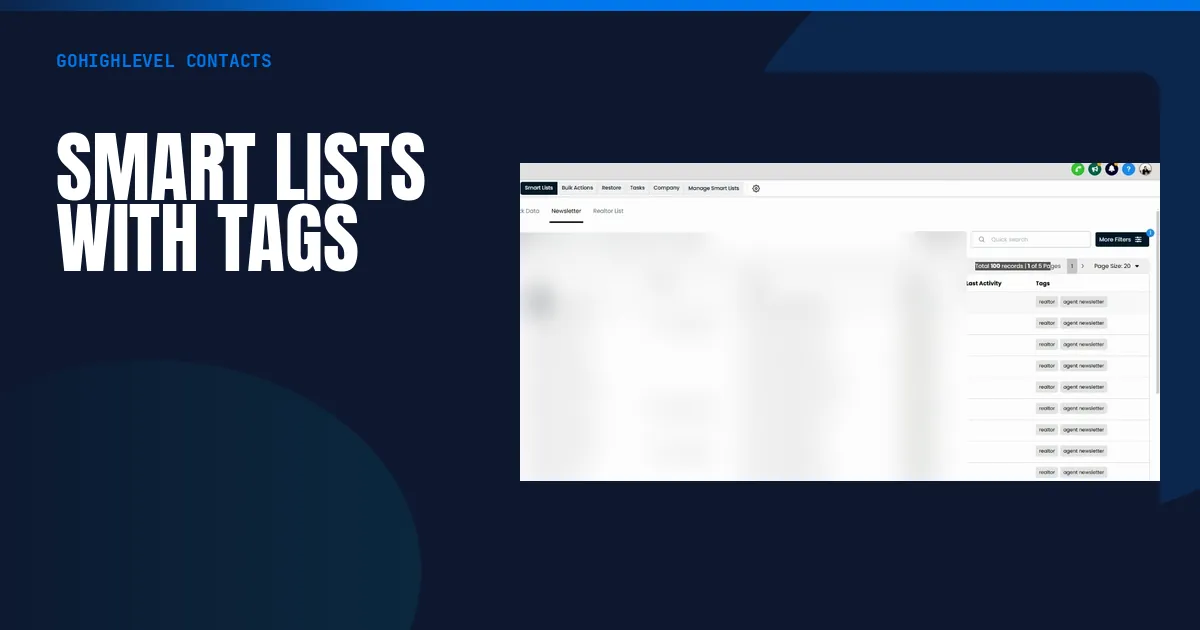
If you're not using smart lists in GoHighLevel, you're marketing to everybody when you should be marketing to somebody.
Say you've got about a thousand contacts and you only want to reach the realtors, or only the people on your newsletter. You don't want to pick them out one by one. You want a list that fills itself. That's a smart list, and tags are the easiest way to build one.
What is a smart list in GoHighLevel?
A smart list is a saved filter on your contacts. Instead of picking people one at a time, you set a rule, like "has the realtor tag" or "phone is not empty," and save it. Anyone who matches the rule shows up on the list. In my account, a list filtered on the realtor tag showed just 21 of about 1,000 contacts.
How do I create a smart list from a tag in GoHighLevel?
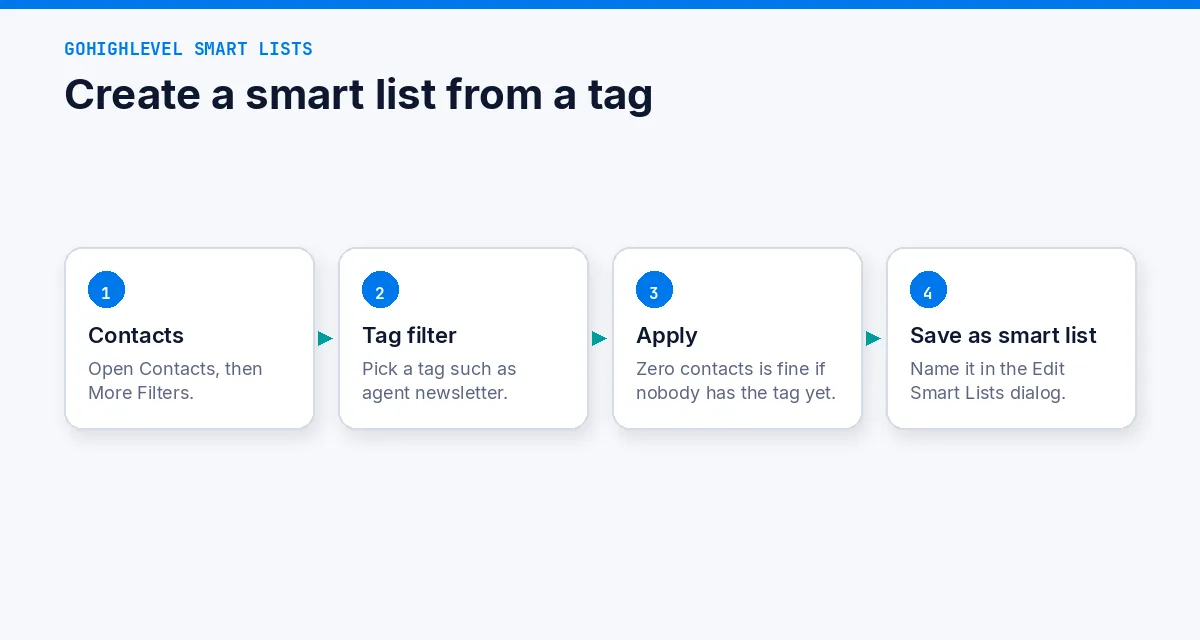
Go to Contacts, click More Filters on the right-hand side, add a tag filter and pick your tag, then click Apply. Click Save as smart list and name it in the Edit Smart Lists dialog. It can start empty. As soon as you add that tag to contacts, they show up on the list automatically.
- Open Contacts and click More Filters on the right-hand side.
- Add a tag filter and choose a specific tag, like agent newsletter.
- Click Apply. If no contacts have the tag yet, the list shows zero. That's fine.
- Click Save as smart list and name it, like Newsletter, in the Edit Smart Lists dialog.
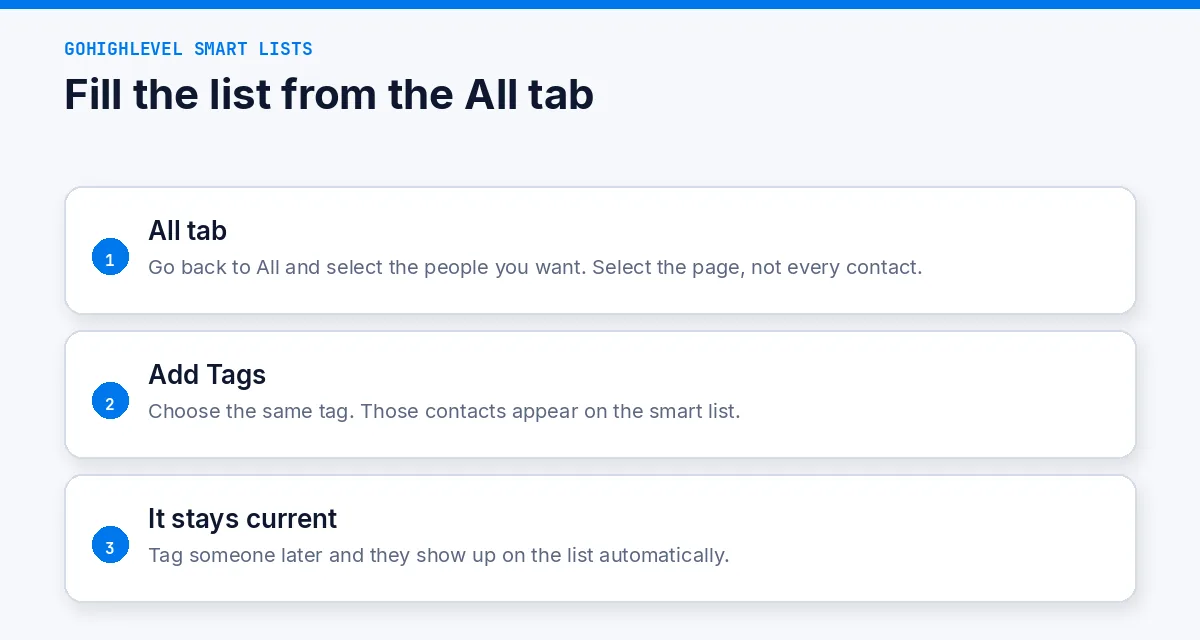
- Go back to the All tab and select the people you want. Select the page, not every contact, if you only want that group.
- Click Add Tags and choose the same tag. Those contacts now appear on your smart list.
What can you do with a smart list?
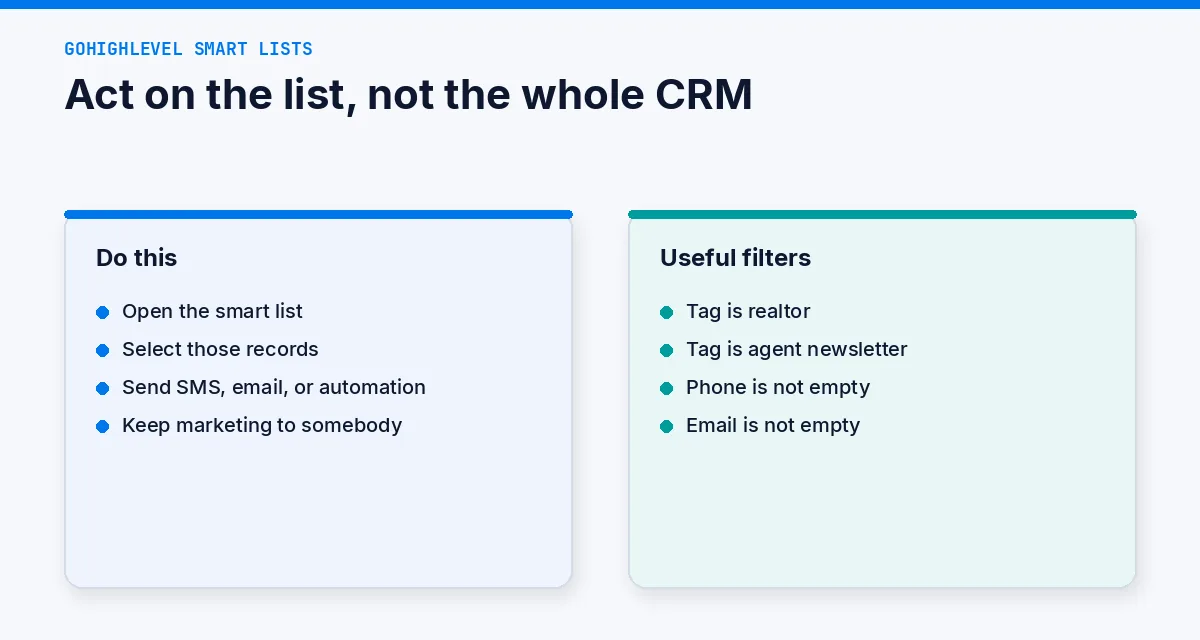
Once a smart list is built, open it, select all the records, and act on just that group. You can add them to an automation, send a mass text with the Send SMS button, or send a mass email. You keep marketing to a specific list instead of everyone in your CRM, and adding the tag to new contacts puts them on the list right away.
Which filters are useful for smart lists besides tags?
Tags are my favorite, but any contact field works. The one I use most after tags is "phone is not empty." After a list upload, some contacts have no phone number. Filter for phone is not empty, save it, and you won't launch a text or ringless voicemail campaign at people you can't reach. "Email is not empty" does the same for email campaigns.
Ideas to build from:
- Tag is realtor: every realtor in your CRM.
- Tag is agent newsletter: everyone who should get the newsletter.
- Phone is not empty: safe for text and voicemail campaigns.
- Email is not empty: safe for email campaigns.
Where did my smart list go?
Once you have several smart lists, they don't all fit across the top. The extra ones move into a More dropdown. Click More, pick the smart list you need, and it's added back to the top bar. One of our clients runs about 32 smart lists, and that's awesome. The more lists you have, the faster you can find the right people to market to.