You might already have HighLevel's free AI turned on, and you might be about to pay for an AI add-on you don't need.
I see it all the time. An agency owner hears about some shiny AI tool, pulls out the card, and never once opens AI Suite to see what HighLevel already gave them. Don't be that person. Check first. It takes about two minutes.
Here's exactly where to look, what's included, what's still paid, and the one setting you need to understand before you hit a limit.
Does HighLevel include free AI?
Yes. HighLevel lists a set of AI tools as included for agency users, with fair-use limits that reset over time. The allowance covers the agency owner, admins and agency users, and it's shared across that whole team. Conversation AI, Voice AI and other agents that run ongoing work are still paid products. Availability depends on your plan, so check your own account.
How do I check if HighLevel's free AI is on?
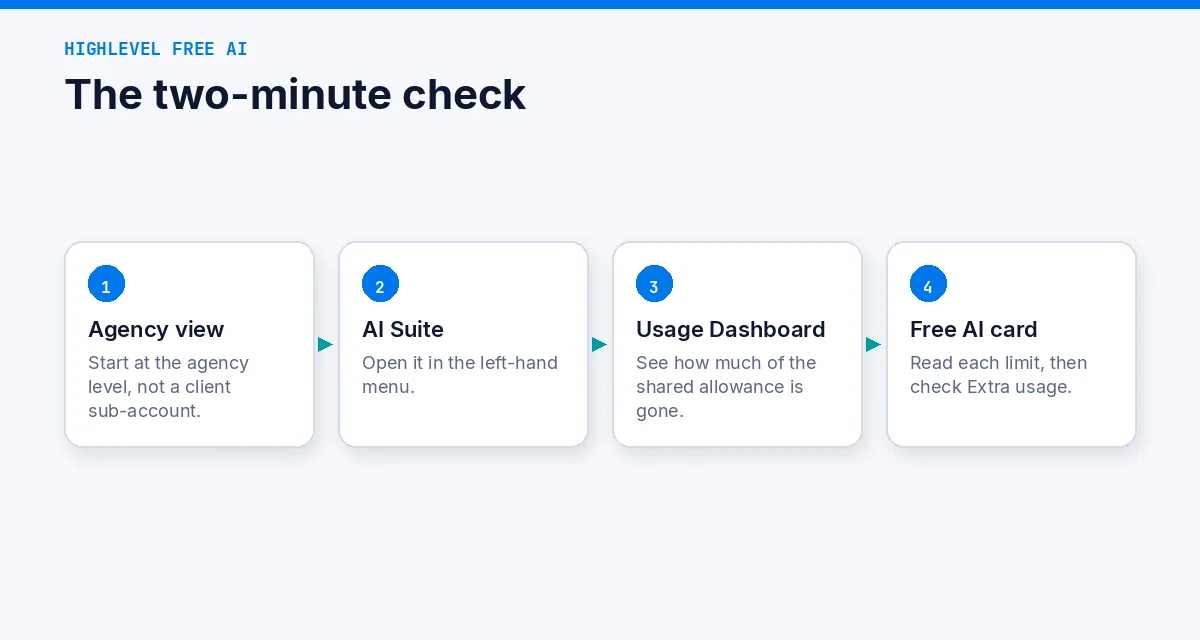
You check it in AI Suite, from your agency view. Open AI Suite in the left-hand menu, click the Usage Dashboard tab, and find the Free AI card. That card shows the percentage used for each limit and when each one resets. Select Manage in Plans and Limits to see the full breakdown.
- Open your agency view. Start at the agency level, not inside a client sub-account.
- Click AI Suite in the left-hand menu. This is where every HighLevel AI tool and its usage lives.
- Open the Usage Dashboard tab. This screen shows how much of your free AI allowance you've used.
- Find the Free AI card. It lists the percentage used for each limit and the date each one resets.
- Select Manage in Plans and Limits. This opens the detail view, including the Extra usage tab.
Heads up: the Usage Dashboard can show client names and dollar figures, so be careful if you screenshot it or share your screen.
Is the free AI allowance per user or per sub-account?
Neither. There is one shared allowance for your whole agency team: the owner, admins and agency users all draw from the same pool. It is not split per person and it is not split per sub-account. HighLevel calls these fair-use limits, not fixed quotas, so the numbers on your own Free AI card are the ones that count.
What AI tools are included free in HighLevel?
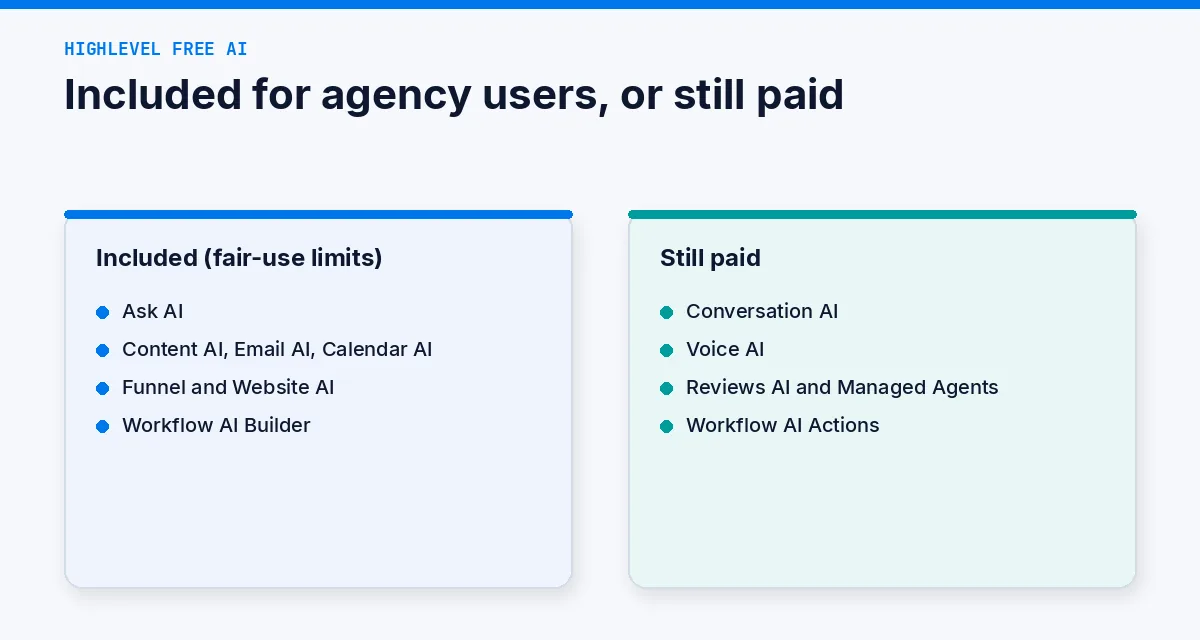
HighLevel lists these as included for agency users, with fair-use limits: Ask AI, AI Studio, Creator Studio, Content AI, Funnel and Website AI, Email AI, Calendar AI, Layout AI, Knowledge Base, and the Workflow AI Builder. One catch: AI Studio hosting is billed separately, so check that before you host anything.
Which HighLevel AI features are still paid?
These are still paid, even with free AI on: Conversation AI, Voice AI, Reviews AI, Managed Agents, Workflow AI Actions, and the Prompt Optimizers for Conversation AI and Voice AI. Don't count any of them in your free allowance.
Watch this one closely: the Workflow AI Builder is included, but Workflow AI Actions are listed as paid. Building the workflow with AI is covered. The AI steps that run inside it are not.
And one more rule. Free AI cannot be resold to your clients.
| Included for agency users (fair-use limits) | Still paid |
|---|---|
| Ask AI | Conversation AI |
| AI Studio (hosting billed separately) | Voice AI |
| Creator Studio | Reviews AI |
| Content AI | Managed Agents |
| Funnel and Website AI | Workflow AI Actions |
| Email AI | Prompt Optimizers (Conversation AI and Voice AI) |
| Calendar AI | |
| Layout AI | |
| Knowledge Base | |
| Workflow AI Builder |
Source: HighLevel help article "Free AI for Agency Users," last modified Nov 2, 2026. HighLevel can change this list, so check your own account.
What happens when you hit HighLevel's free AI limit?
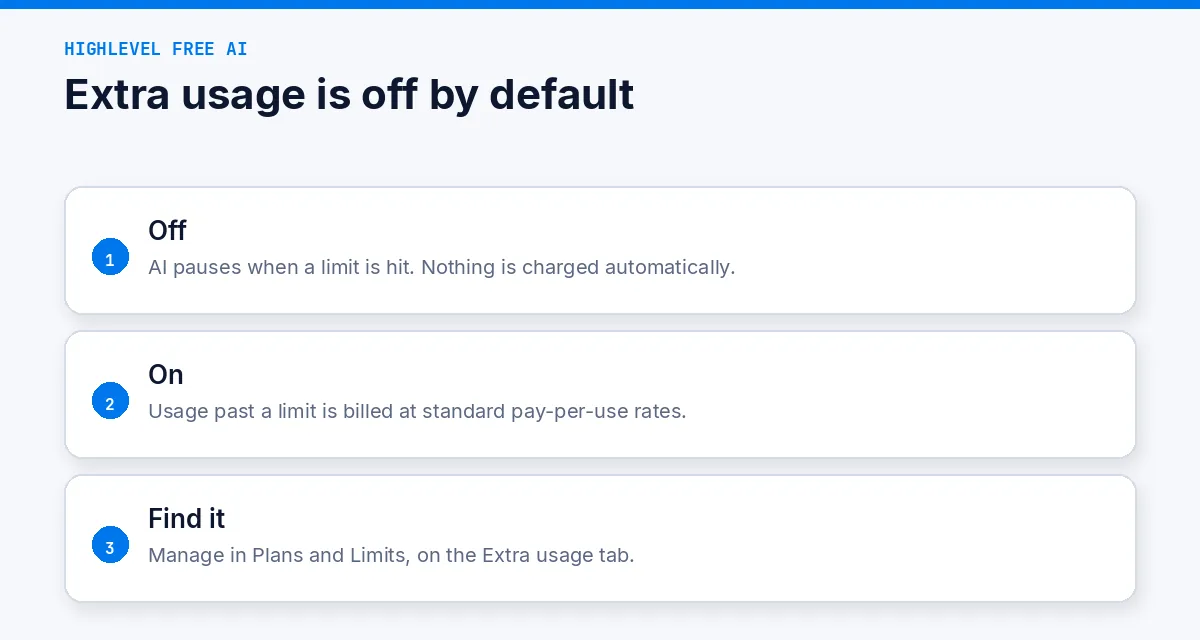
It depends on one setting: Extra usage. It's off by default. With it off, HighLevel says AI pauses until the limit resets and nothing is charged automatically. If you turn it on, usage past a limit is billed at standard pay-per-use rates. You'll find it under Manage in Plans and Limits, on the Extra usage tab.
That's the part nobody tells you. Flip Extra usage on without thinking and your "free" AI quietly turns into a bill. Make it a deliberate choice, not an accident.
A few more things to know:
- Some tools always pause at the limit. Funnel and Website AI, Email AI and the Workflow AI Builder have no pay-per-use option, so they stop at their limit even with Extra usage on.
- You get a warning. Owners and admins get email and in-app alerts as you approach a limit and when one runs out.
- AI Employee changes the math. Past a limit, AI keeps running only if Extra usage is on or an AI Employee subscription applies.
Does HighLevel's free AI cover sub-account users?
Not the same way. Free AI covers your agency owner, admins and agency users. Sub-account users are not covered by that free allowance. For Ask AI, AI Studio, Creator Studio and Content AI, their usage is billed through an AI Employee plan or pay-per-use. HighLevel's comparison table lists some tools as free for sub-account users, so check the account you're working in.
According to that comparison table, these are listed as free for sub-account users: Funnel and Website AI, Email AI, Calendar AI, Layout AI, Knowledge Base, and the Workflow AI Builder.
So before you tell a client "the AI is free," check whether you're in the agency view or their sub-account. It's not the same answer.
The 2-minute check before you buy any AI add-on
- Open AI Suite. From your agency view, in the left-hand menu.
- Open the Usage Dashboard. See how much of your shared allowance is already gone.
- Read the Free AI card. Note each limit and when it resets.
- Look at Extra usage. Know whether it's on or off before you turn on anything else.
- Check the account you're in. Agency users and sub-account users are treated differently.
Do that first. The allowance is shared across your whole agency team, and Conversation AI and Voice AI are still paid no matter what.
Have you opened AI Suite yet? Tell me what you found in the comments on the video.