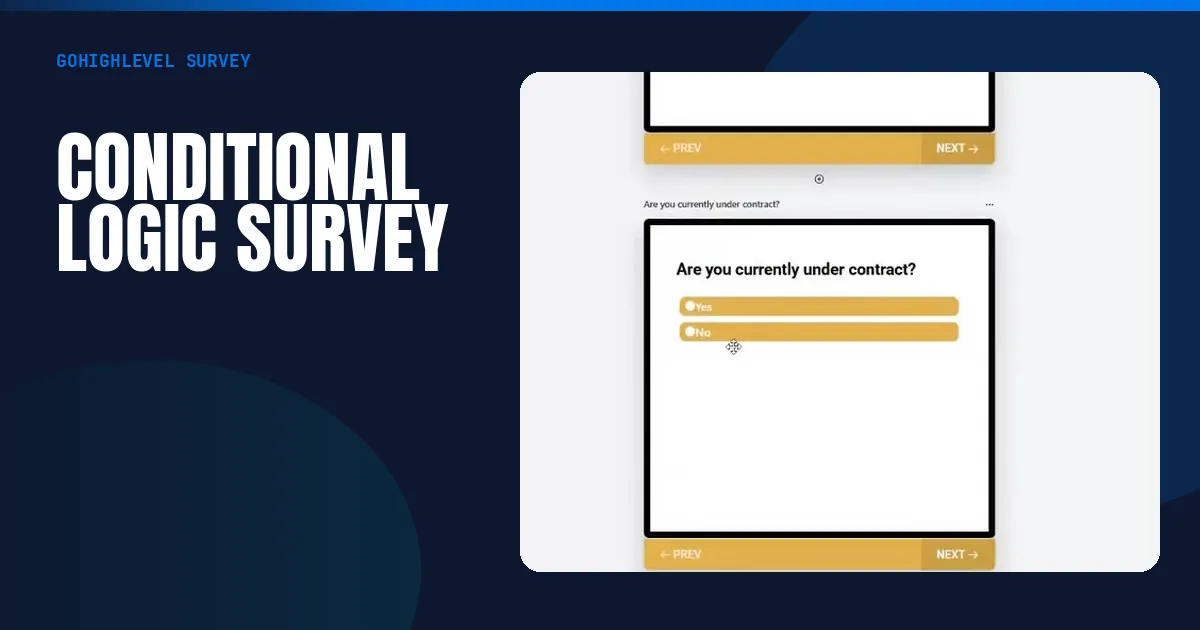
Stop building a separate survey for every type of lead. Build one survey that asks the right questions, skips the ones that don't apply, and drops each lead into the right drip campaign.
I built this for a mortgage team that does DSCR loans and regular mortgages. They wanted a survey that qualified their leads and, depending on the answers, started the right follow-up. Here's exactly how we did it.
What is a conditional logic survey in GoHighLevel?
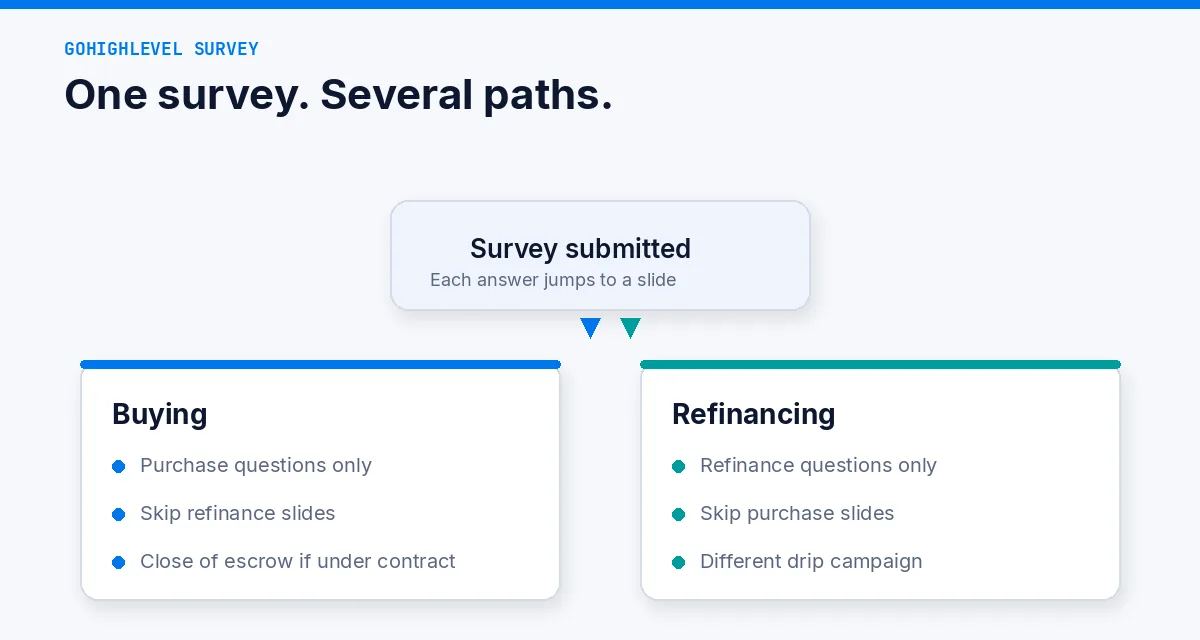
A conditional logic survey changes its next question based on the last answer. In GoHighLevel, you build the survey as slides, and each answer can send the lead to a specific slide. If a lead says they're buying, they go to the purchase questions. If they're refinancing, they go to the refinance questions. It's one survey with several paths.
How do you add conditional logic to a GoHighLevel survey?
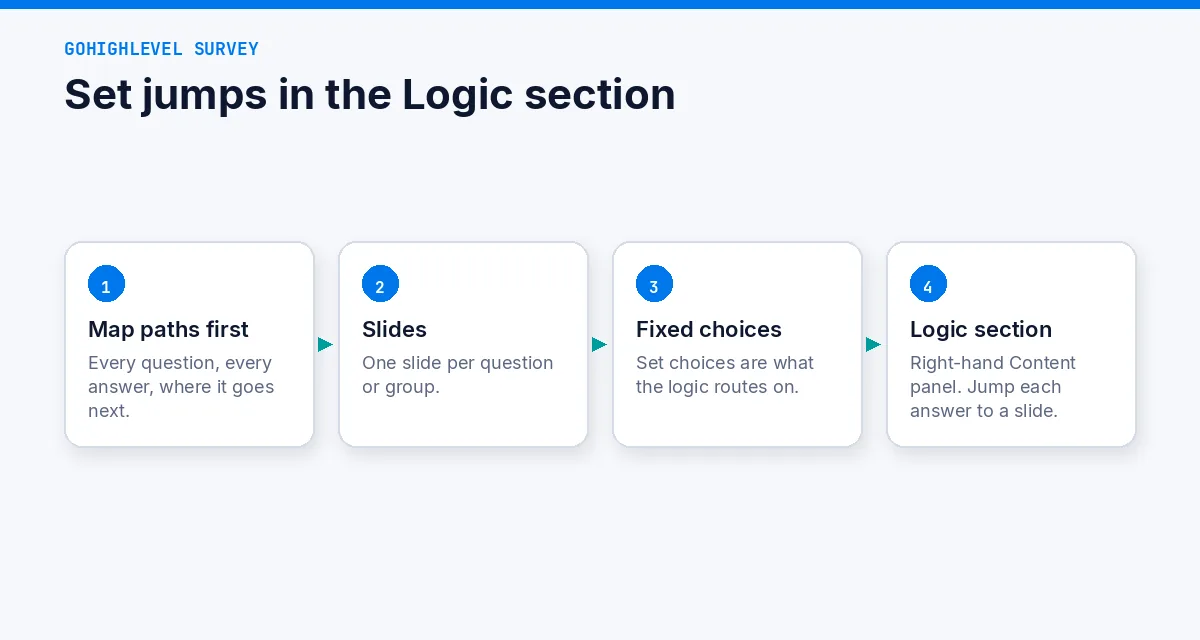
Build the survey as separate slides, add a question with fixed answer choices, then use the Logic section of the right-hand Content panel to send each answer to a specific slide. Repeat that for every branching question. Questions that don't apply get skipped automatically, because that answer's path never reaches them.
- Map the paths first. Sit down with the client and list every question, every answer and where each answer should go next.
- Open your survey in the builder and create one slide per question or group of questions.
- Give branching questions fixed answer choices. Set choices are what the logic routes on.
- Set the jumps in the Logic section. Select the field, open the Logic section of the right-hand Content panel, and choose which question or slide each answer jumps to.
- Skip what doesn't apply. Example: "Are you currently under contract?" Yes asks for the close of escrow date. No skips it.
- Match the brand. I added custom CSS so the survey matched the client's logo colors.
What happens after someone submits the survey?
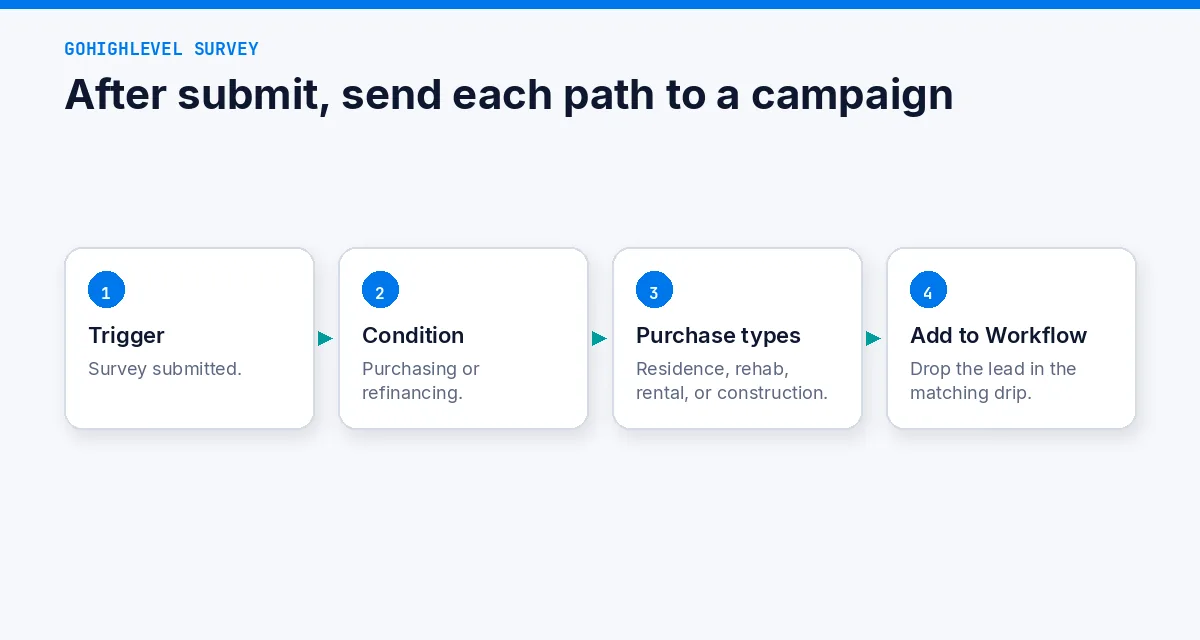
That's the most important part. Build a workflow triggered by the survey submission, then add Condition actions that follow the same answers as your survey. Each branch uses Add to Workflow to send the lead to the drip campaign built for their situation. One survey feeds many campaigns, so you never rebuild the survey.
In my build, the workflow looked like this:
- Trigger: survey submitted.
- First Condition: purchasing or refinancing.
- Second Condition (purchase branch): A Primary Residence, Hard Money Rehab Loan, Investment Rental Property or Ground Up Construction.
- Add to Workflow: send the lead into the drip campaign workflow built for that exact transaction type.
Plan your logic on paper before you build
Most survey logic breaks because nobody mapped it first. Before you open GoHighLevel, write down:
- Every branching question and its fixed answer choices.
- Where each answer goes next, by slide number.
- Which questions get skipped on each path.
- The campaign each path ends in.
- The workflow conditions that match those same answers.
When the map and the build match, testing is easy. Run one test lead down every path and confirm it lands in the right campaign.
How long does a build like this take?
The logic mapping took roughly two hours. The full project, including the funnel, the survey, the logic and the campaigns, was about a 20 to 30 hour build, and the client was happy to pay us to do it. Most of that time goes into the campaigns, not the survey itself.